 KitGuru KitGuru.net – Tech News | Hardware News | Hardware Reviews | IOS | Mobile | Gaming | Graphics Cards


Our main test involves using an X-Rite i1 Display Pro Plus colorimeter and utilising Portrait Display's Calman Ultimate software. The device sits on top of the screen while the software generates colour tones and patterns, which it compares against predetermined values to work out how accurate the screen is.
The results show:
- A monitor’s maximum brightness in candelas or cd/m2 at various levels set in the OSD.
- A monitor’s contrast ratio at various brightness levels in the OSD.
- Gamut coverage, primarily focusing on sRGB and DCI-P3 colour spaces.
- Greyscale accuracy, measured across 20 shades, with an average colour balance reported.
- The exact gamma levels, with a comparison against preset settings in the OSD.
- The colour accuracy, expressed as a Delta E ratio, with a result under 3 being fine for normal use, and under 2 being great for colour-accurate design work.
We first run these tests with the display in its out-of-the-box state, with all settings on default. If there is an sRGB emulation option or other useful mode then we may test that too. We then calibrate the screen using the Calman Ultimate software and run the tests again.
You can read more about our test methodology HERE.
Default settings
Brightness and Contrast (Full Screen)
| OSD Brightness | White Luminance (cd/m2) | Black Luminance (cd/m2) | Contrast Ratio |
| 0% | 8.1 | 0.00 | ~Infinite |
| 25% | 69.3 | 0.00 | ~Infinite |
| 50% | 129.3 | 0.00 | ~Infinite |
| 75% | 196.4 | 0.00 | ~Infinite |
| 100% | 264.5 | 0.00 | ~Infinite |
Kicking off with our brightness testing, the M27UO gets incredibly dim at just 8 nits minimum, while it gets up to 265 nits maximum, about typical for a 4th Gen QD-OLED. Naturally contrast is effectively infinite given the per-pixel nature of OLED.
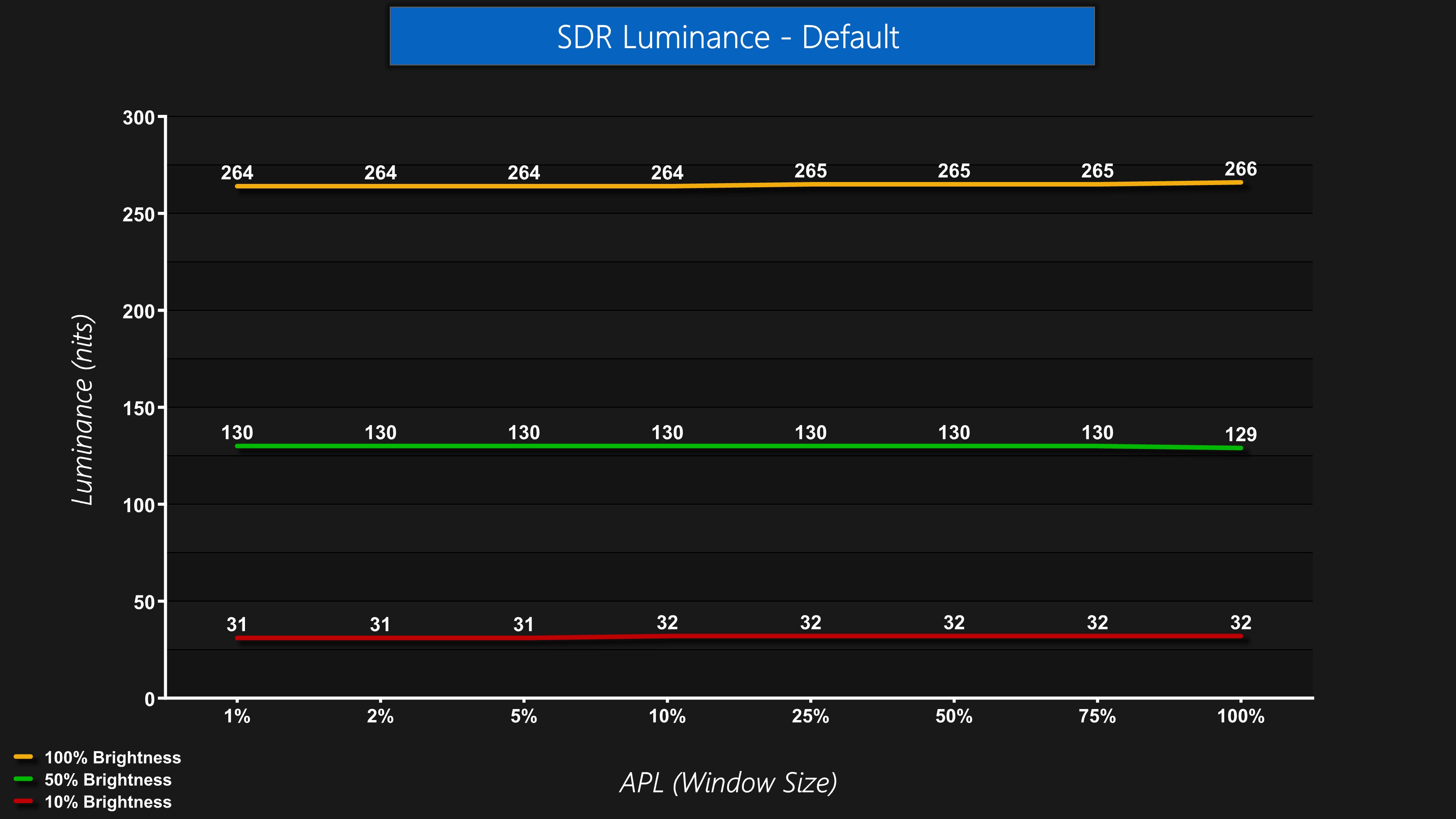
By default the brightness output is consistent regardless of window size (APL).
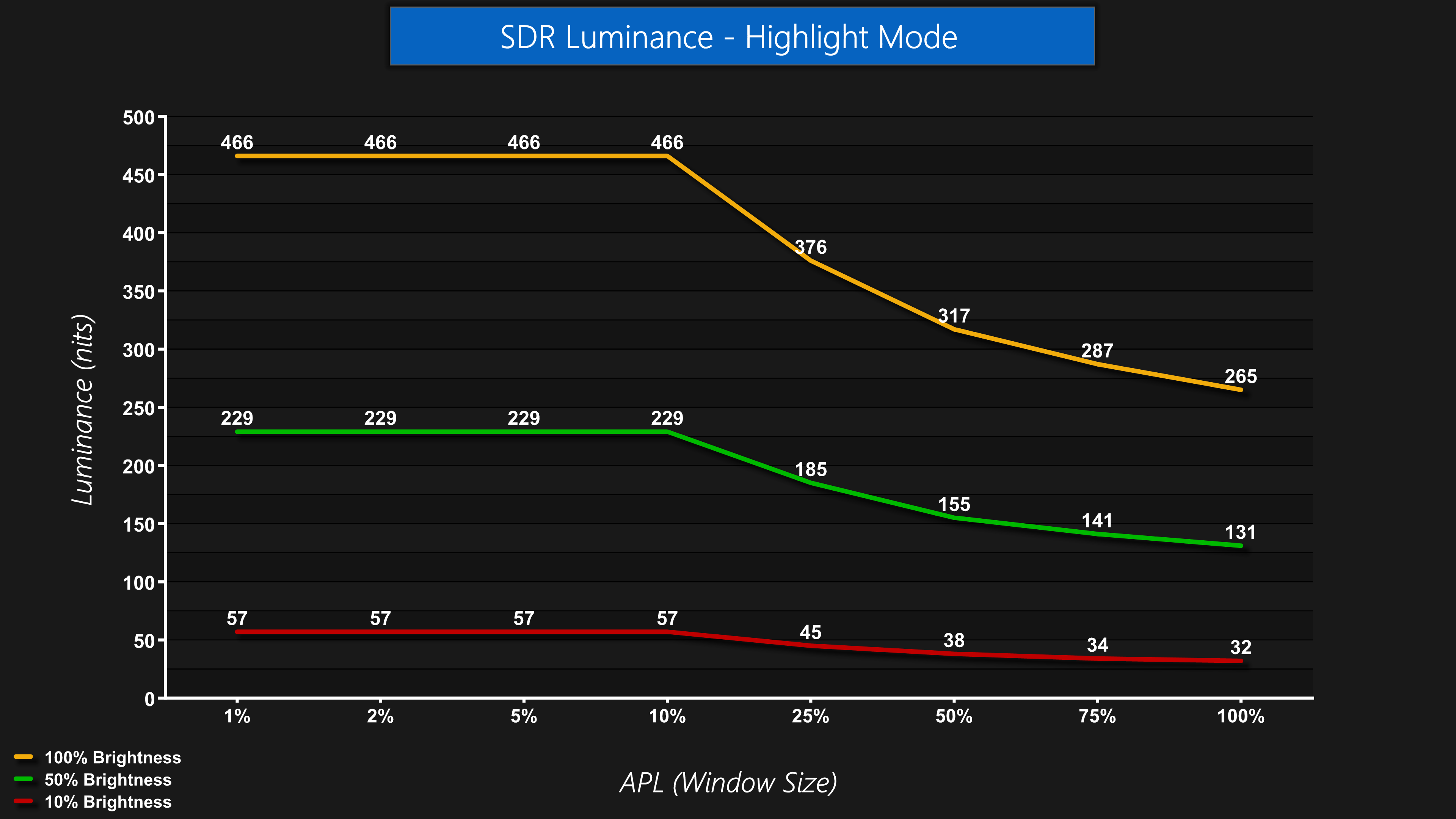
However, there is also an option in the OSD to enable Highlight Mode, and this does unlock higher peak brightness, but only for the smaller window sizes – essentially the same behaviour we'd see in HDR, but offered in SDR for those who want that.
Gamut (CIE 1976)
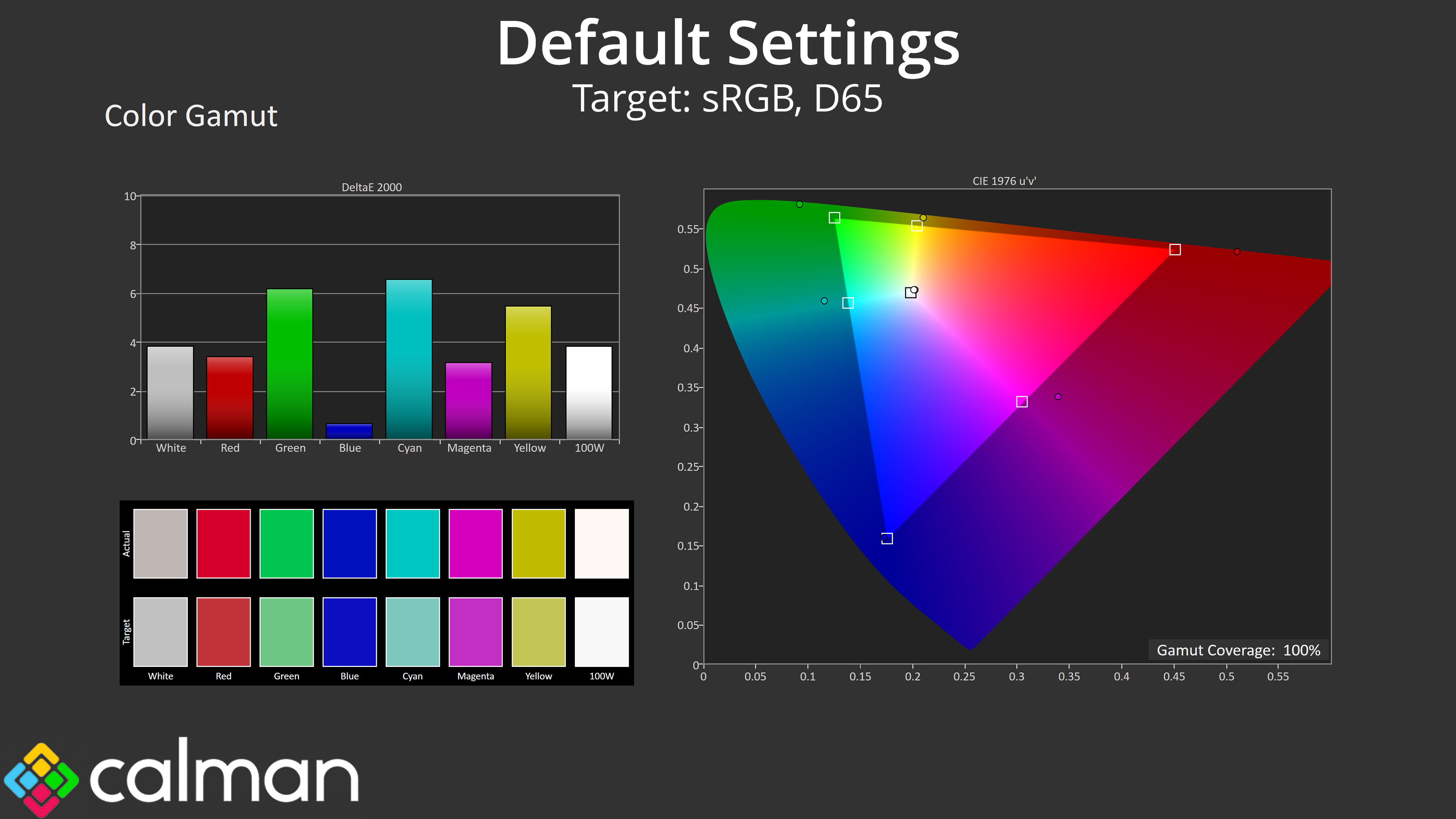
| Colour space | Coverage (%) |
| sRGB | 100 |
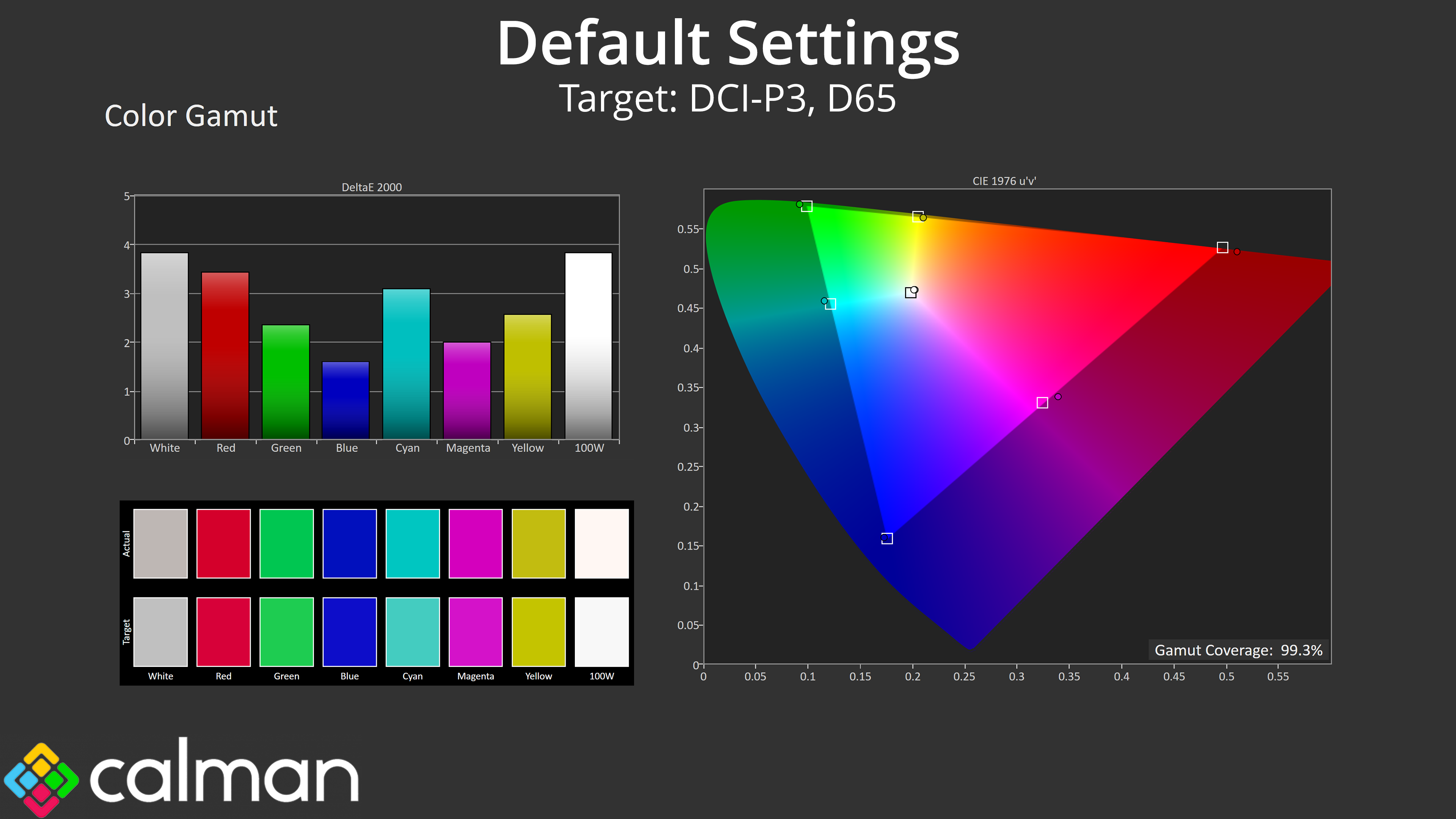
| DCI-P3 | 99.3 |
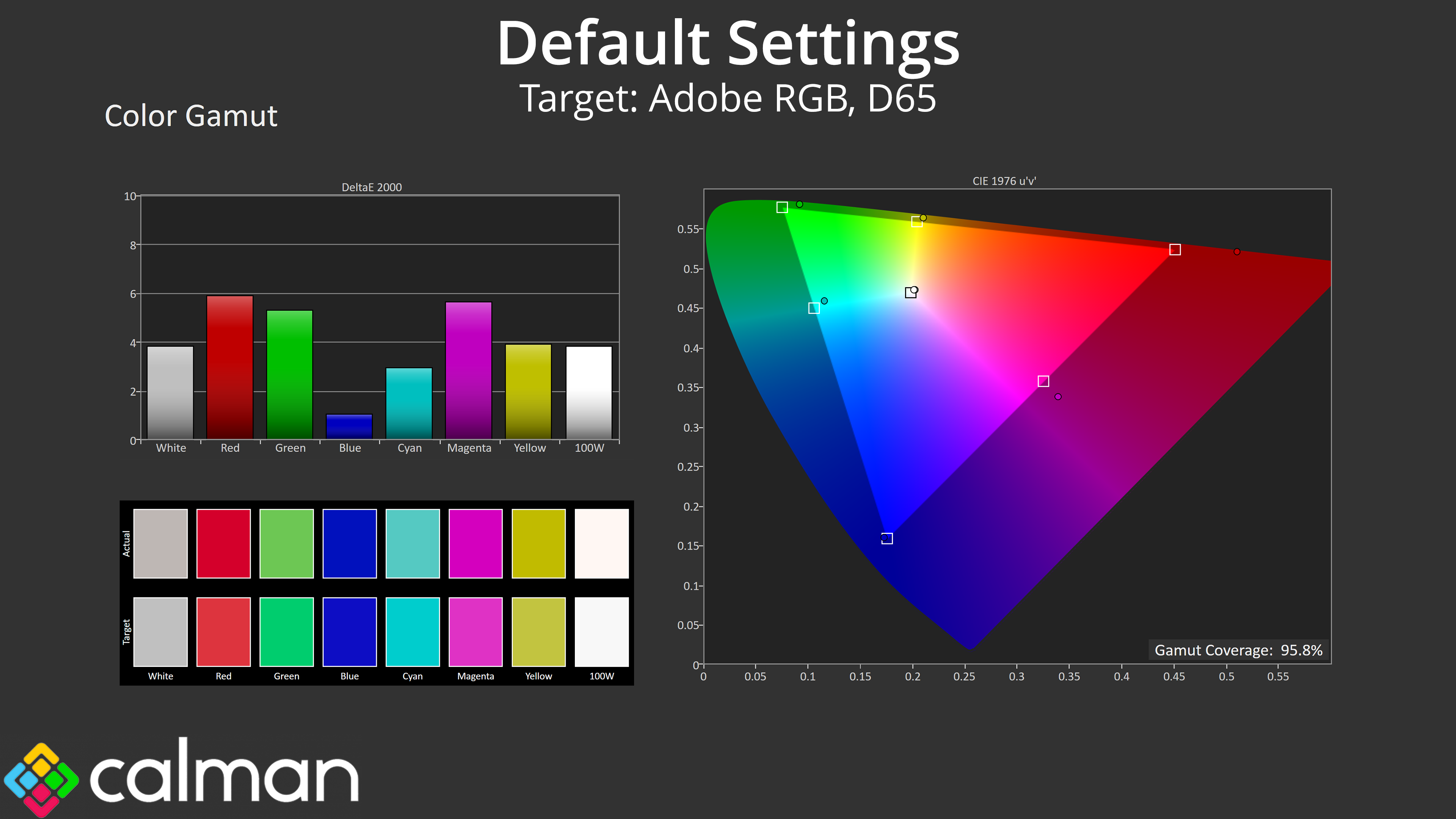
| Adobe RGB | 95.8 |
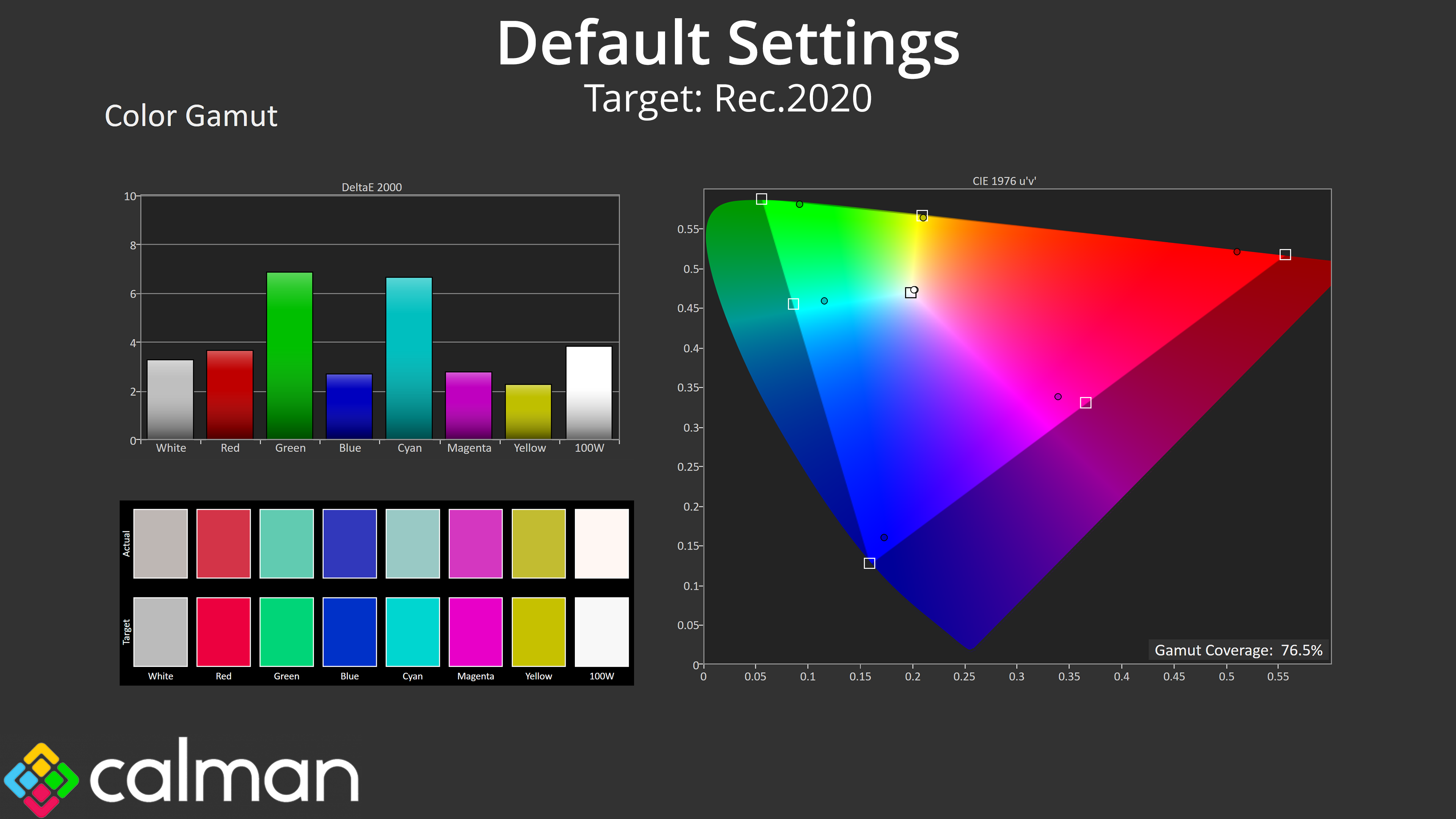
| Rec.2020 | 76.5 |
Gamut is as wide as we'd expect, far surpassing the sRGB space and offering 99.3% coverage of DCI-P3, 95.8% Adobe RGB and then 76.5% reporting for Rec.2020 – all very typical of a QD-OLED.
Greyscale
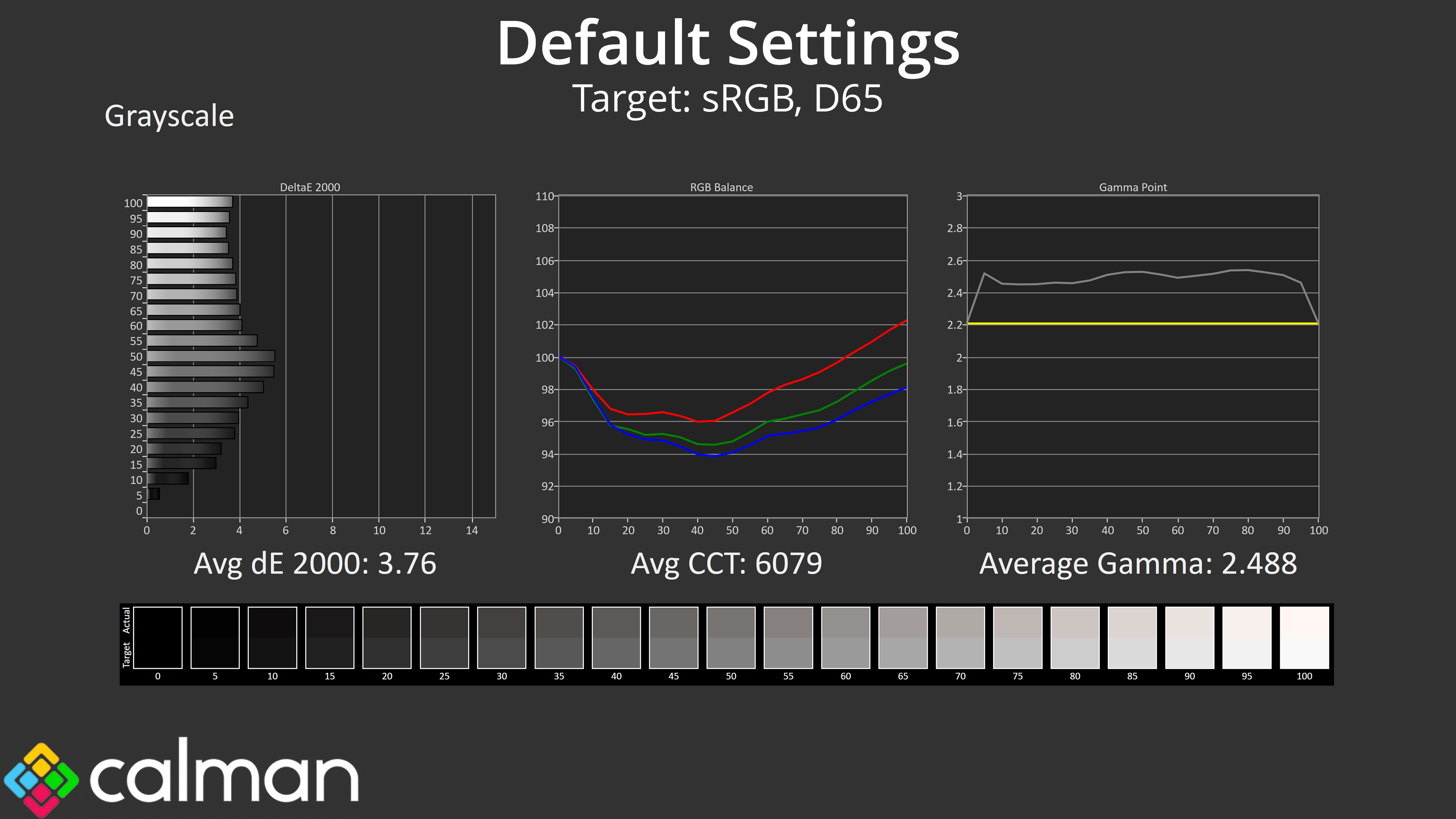
Unfortunately, default greyscale performance leaves a fair bit to be desired. The monitor ships using the Warm colour balance mode, which is indeed too warm, averaging 6079K. Gamma is also far too high across the board, averaging closer to 2.5 than the 2.2 target, giving a darker-than-intended appearance.
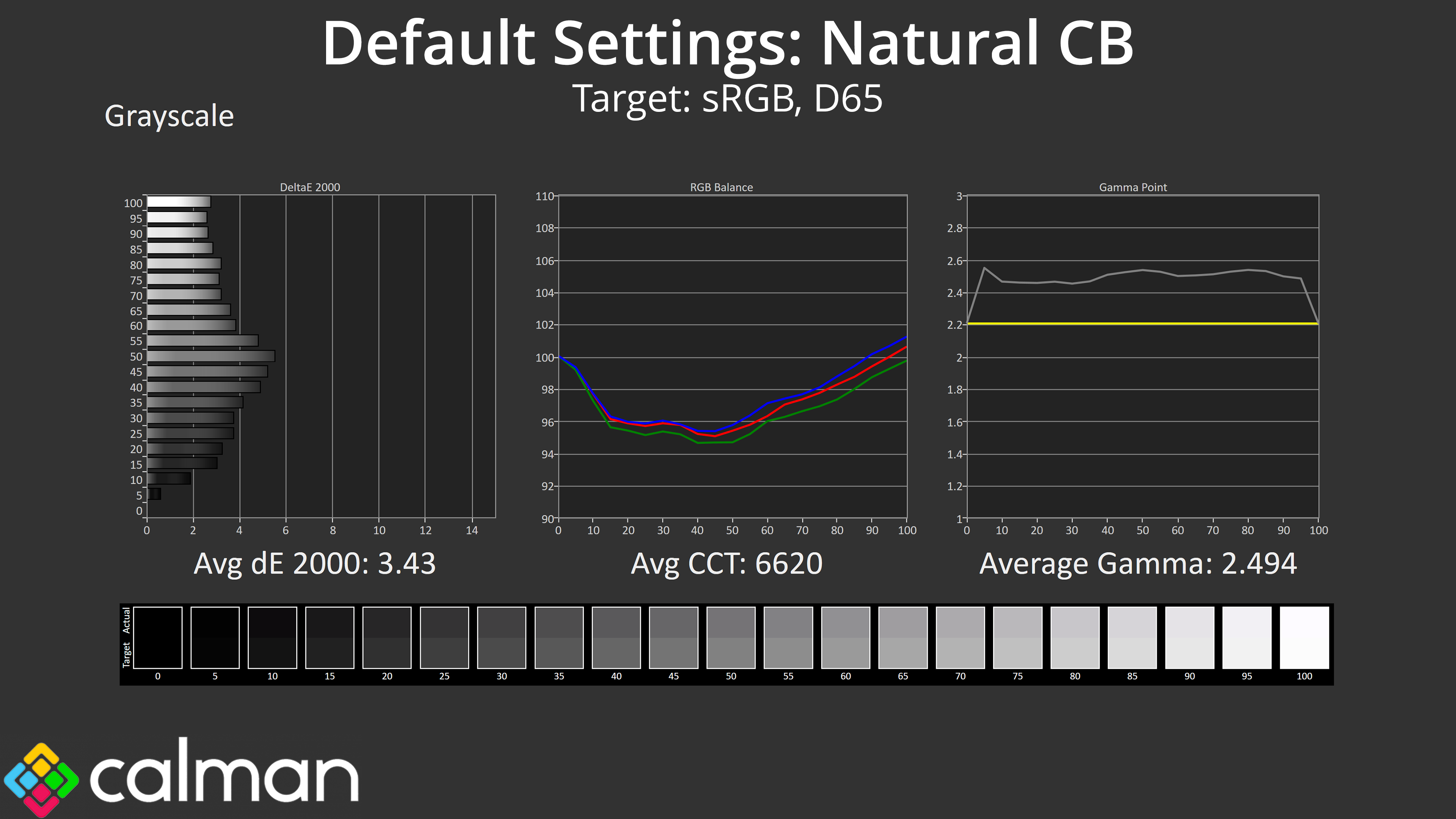
The good news is that both issues are more or less fixable. Firstly, simply swapping to the Natural colour balance mode makes a huge difference, with much more balance across the RGB channels, averaging 6620K.
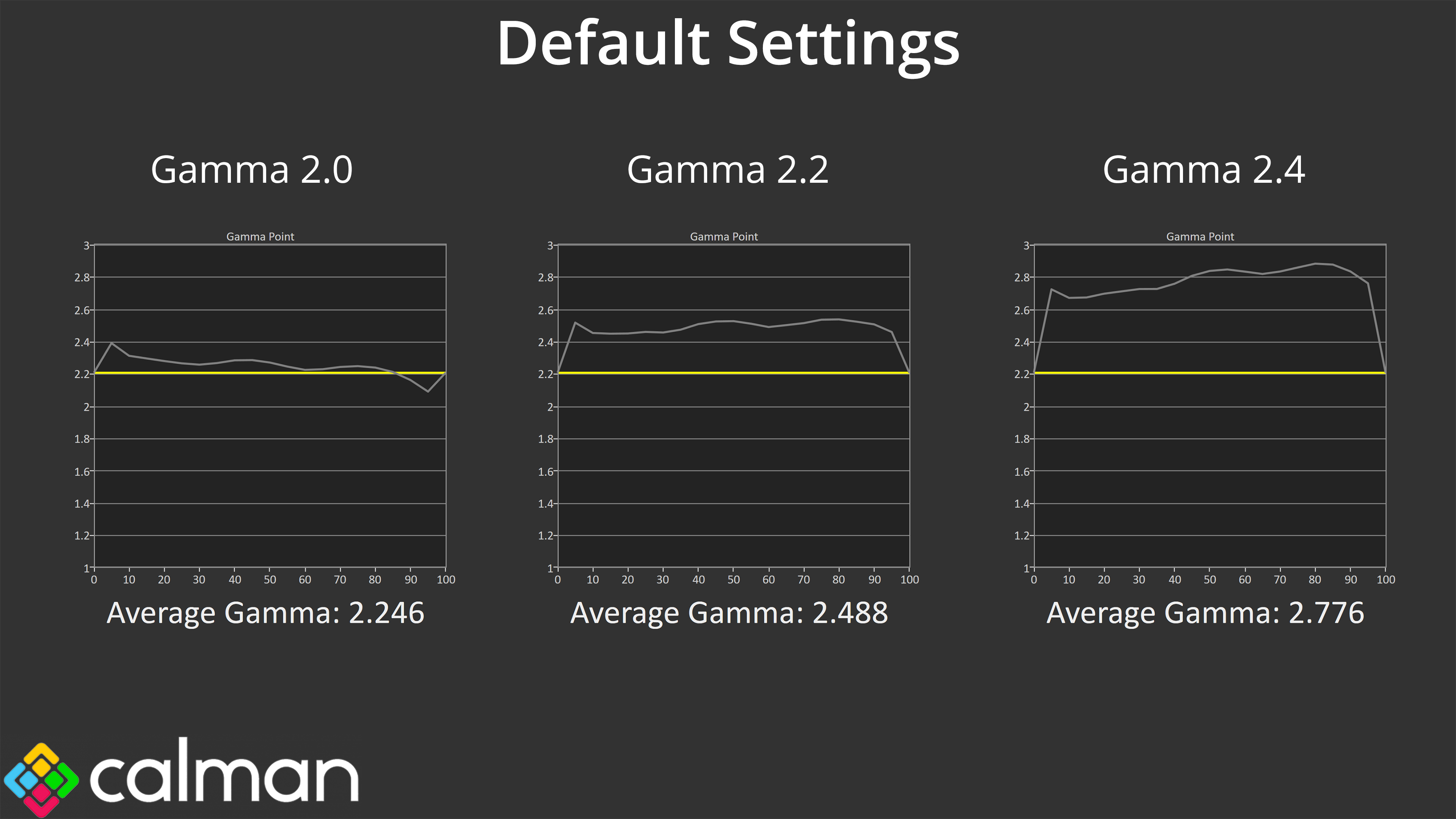
We also found that using the Gamma 2.0 setting actually delivers great results for a gamma 2.2 target – I'm not sure if the names have just been mixed up in the OSD, but definitely use Gamma 2.0 instead of 2.2 for more accurate performance.
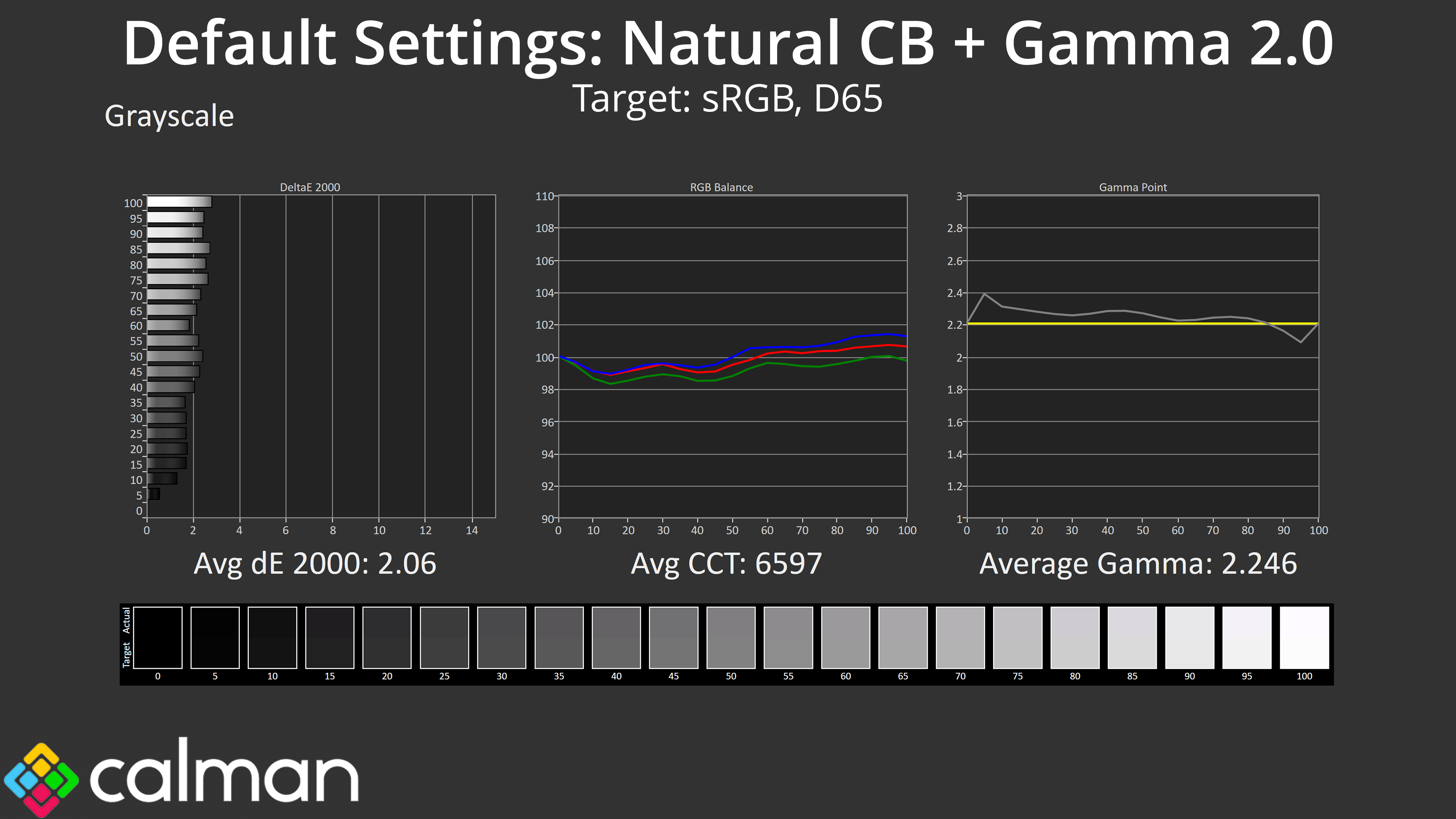
Combining both the Natural colour balance and Gamma 2.0 settings gives significantly better results over stock, this time improving the average greyscale dE to 2.06, which is much more like it.
Saturation
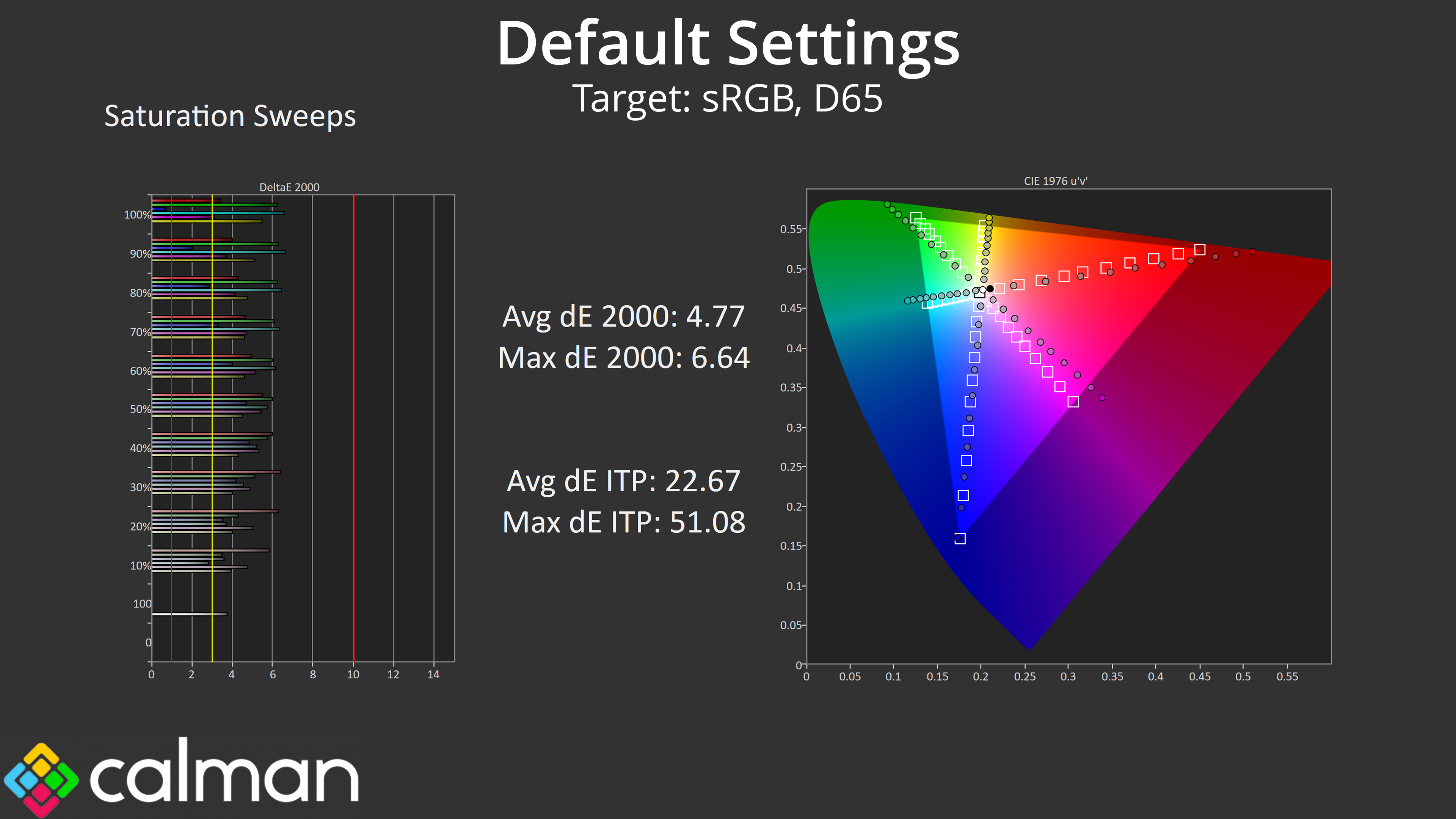
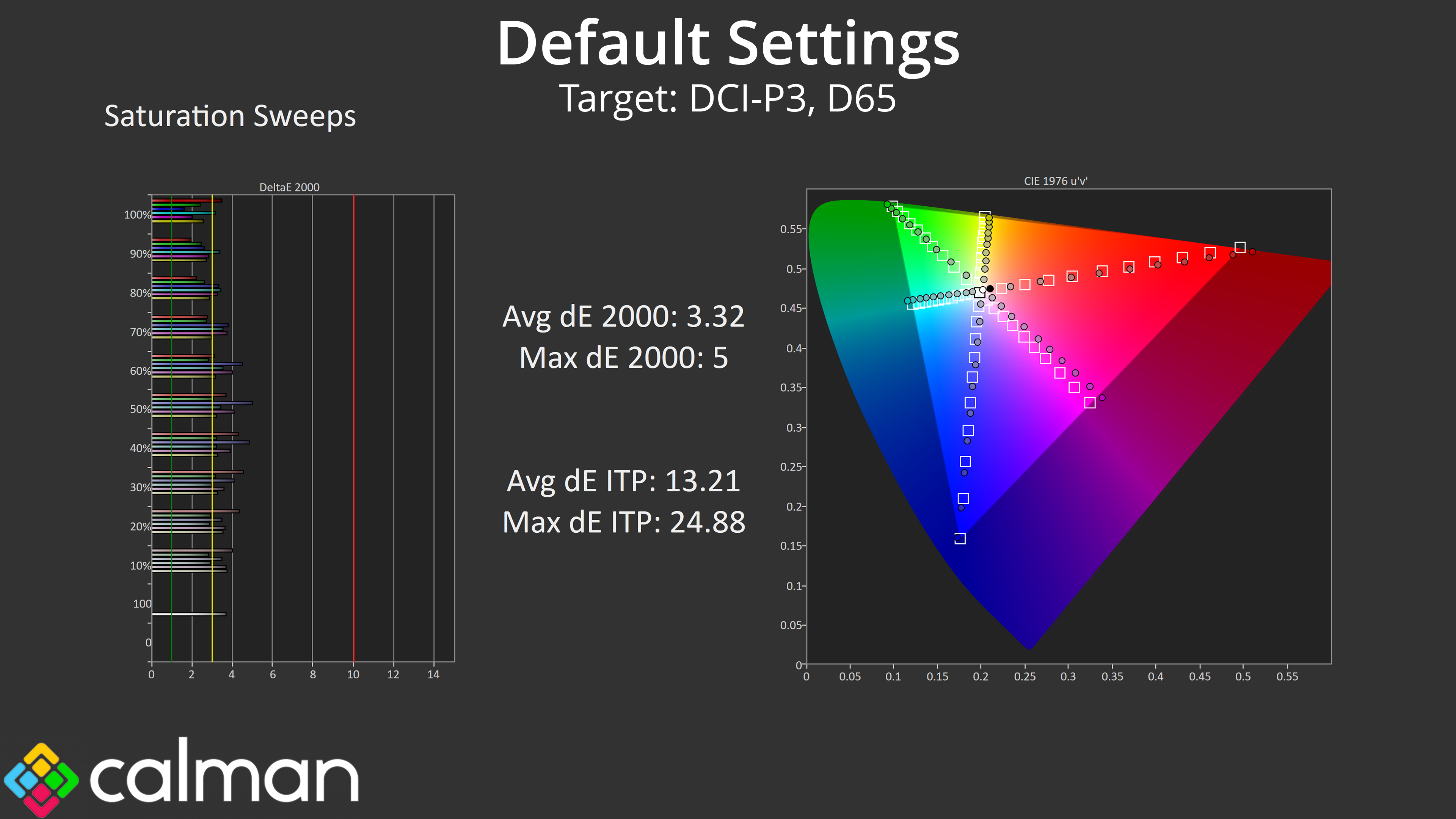
Back to our default settings testing though, saturation sweeps indicate a high level of over-saturation as we'd expect from a QD-OLED.
Colour Accuracy
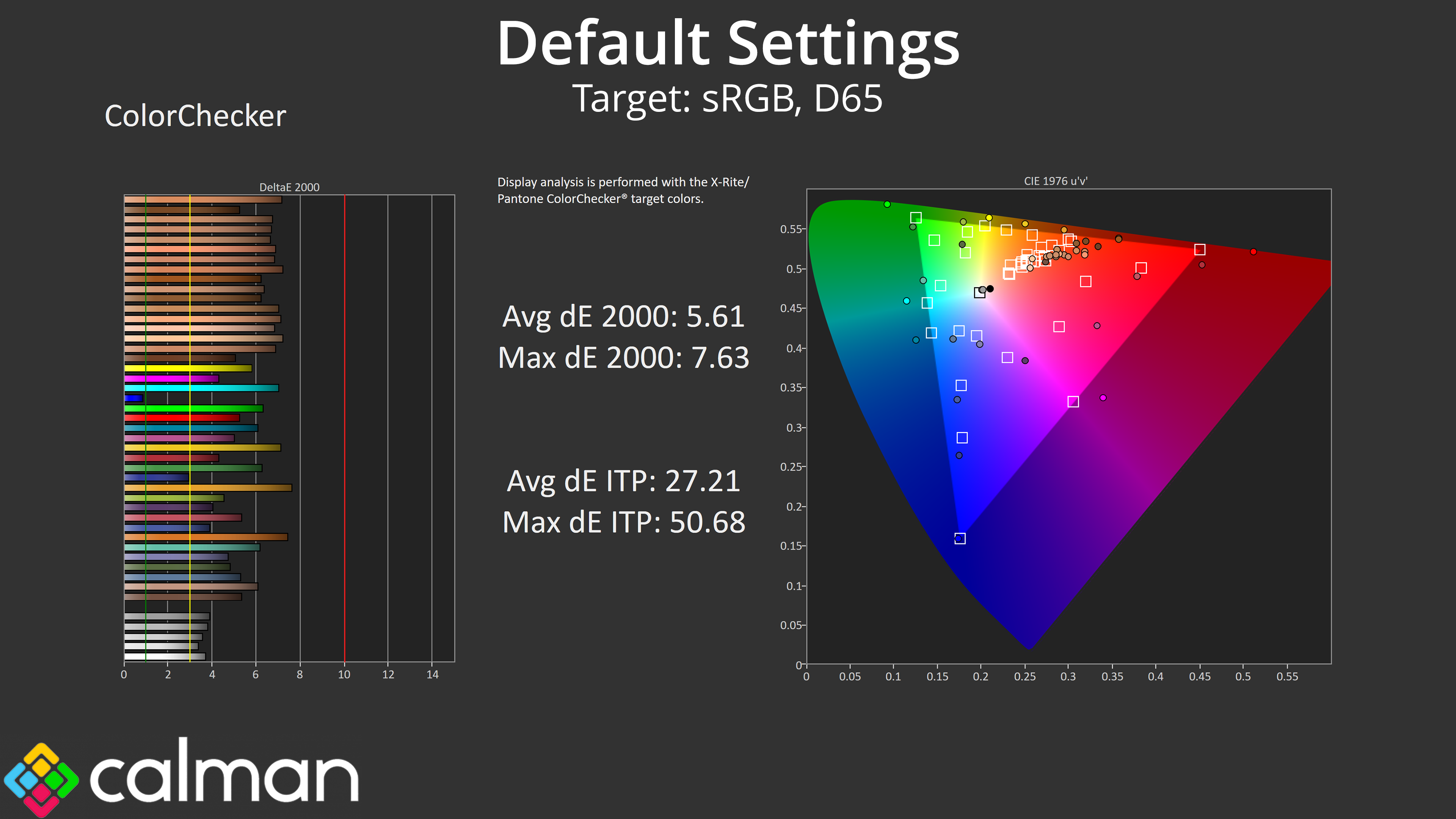
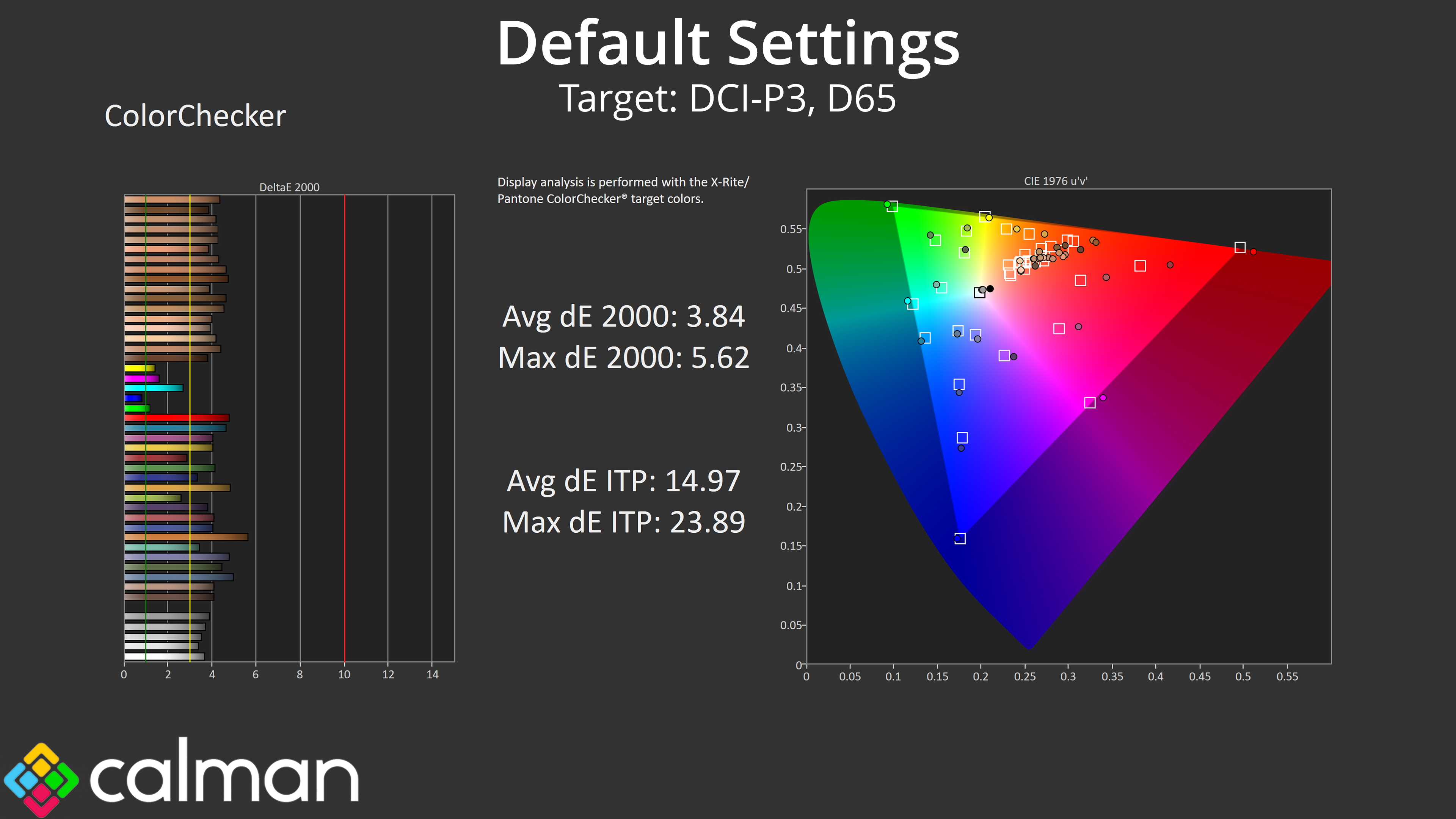
Unfortunately that over-saturation, plus the dodgy gamma and colour balance, result in quite high error rates when looking at our colour accuracy tests – as evidenced by the average dE 2000 of 3.84 for the DCI-P3 space.
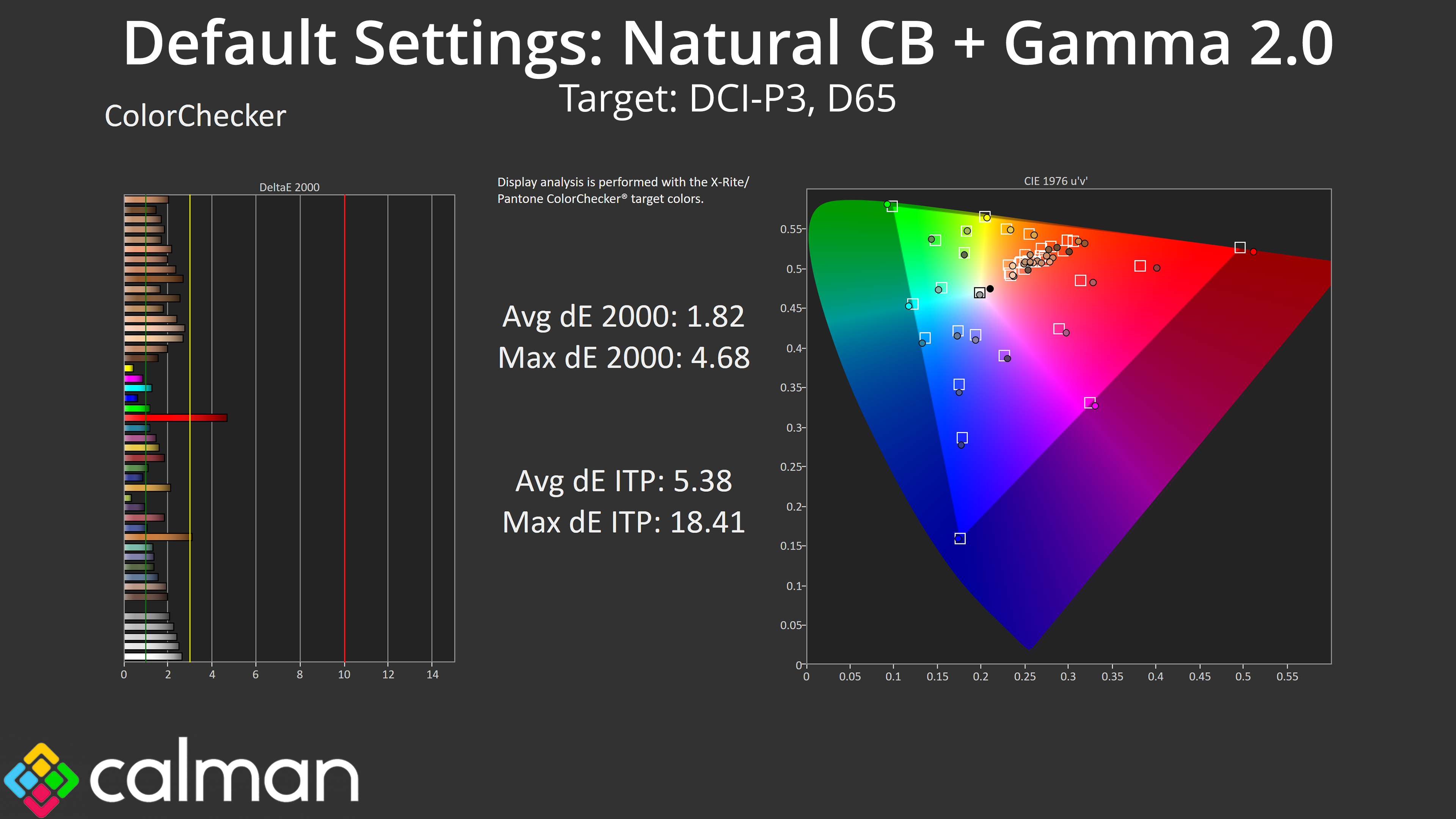
Just to show what's possible if the Natural colour balance and Gamma 2.0 settings were used as default, the same test shows a significant improvement, with an average dE 2000 of just 1.82. I guess it's good that these settings are there as options, but they really should be the default, out of the box experience as currently, the monitor is quite inaccurate when it doesn't need to be.
sRGB Emulation Mode
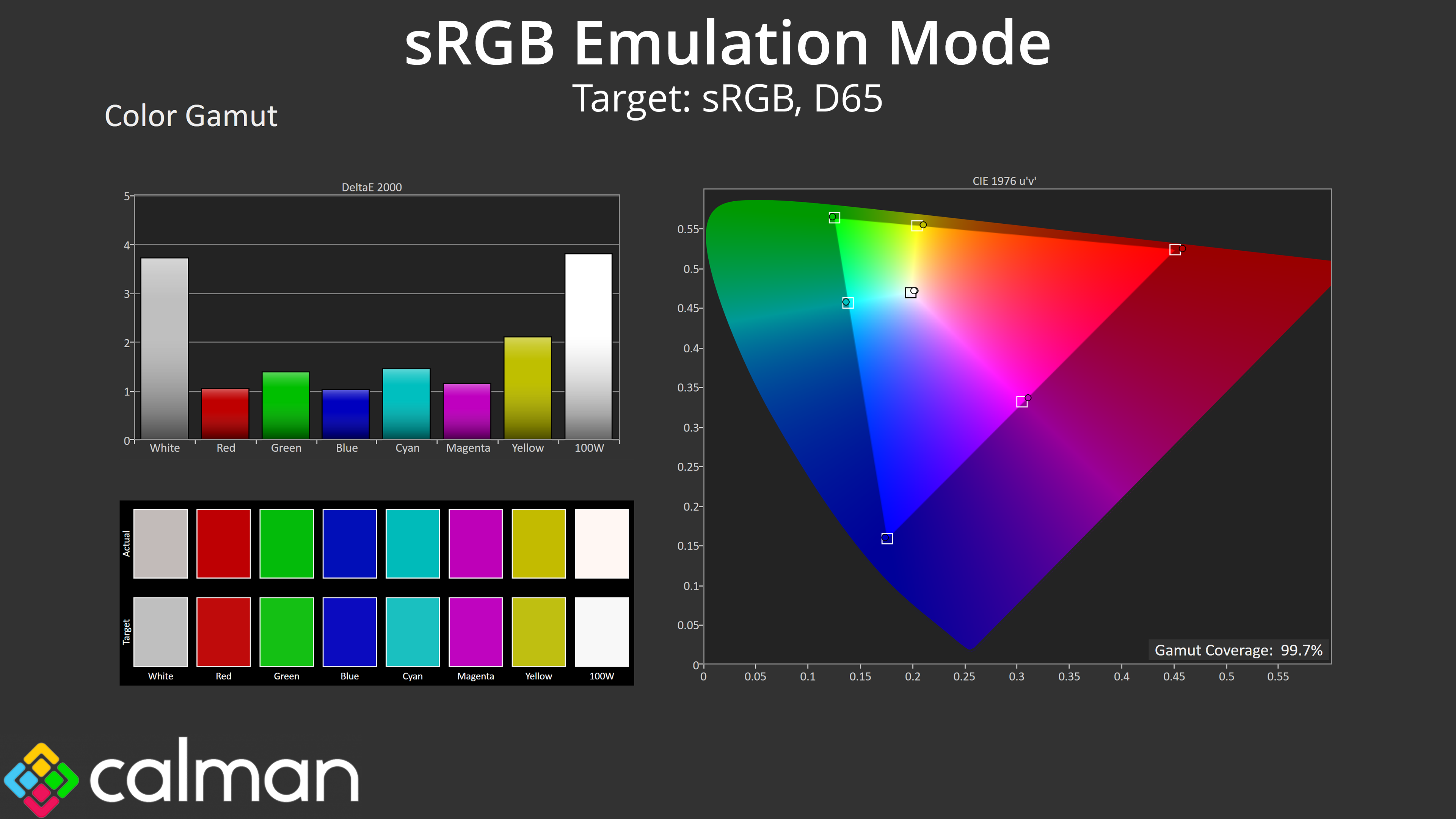
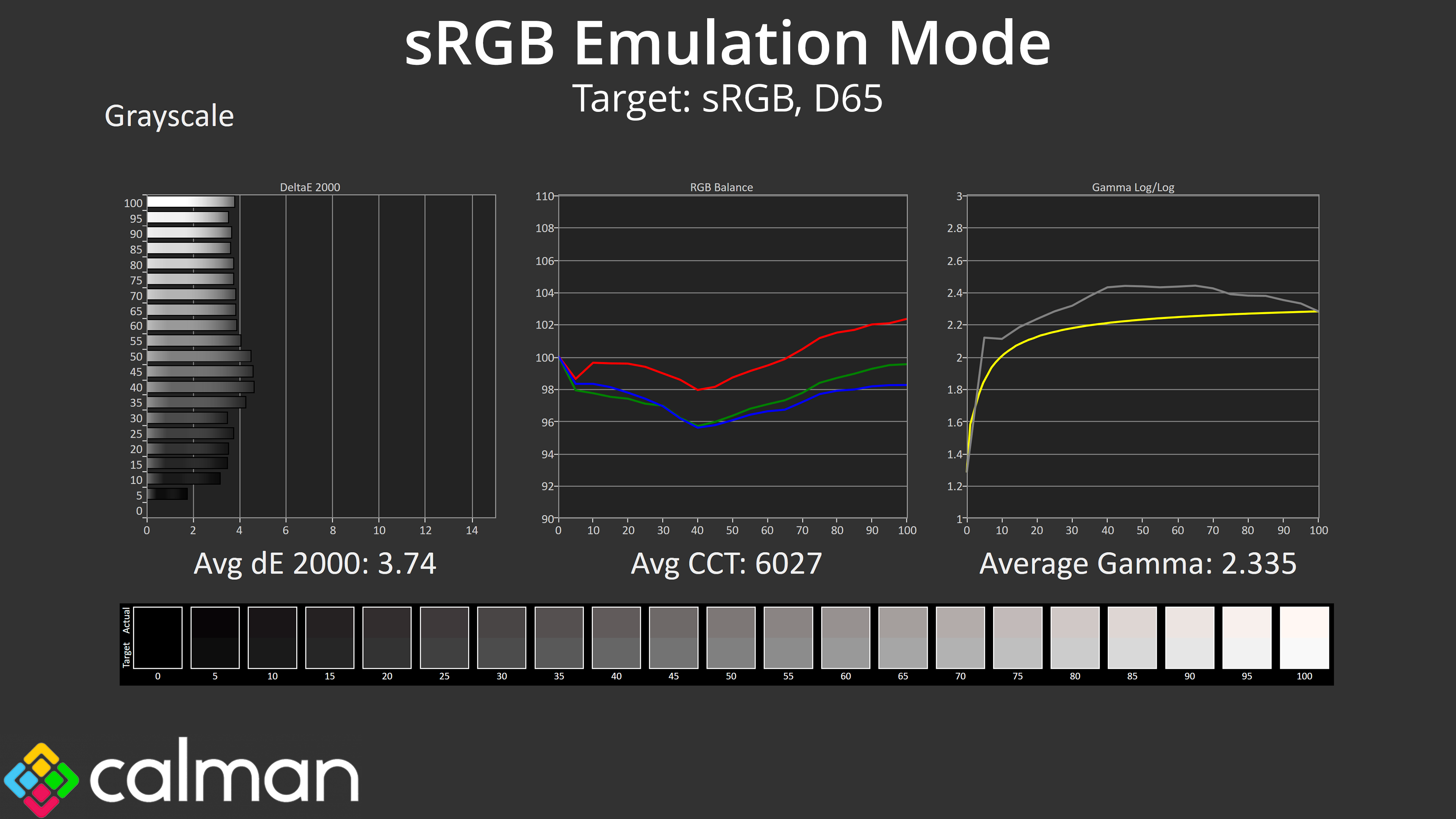
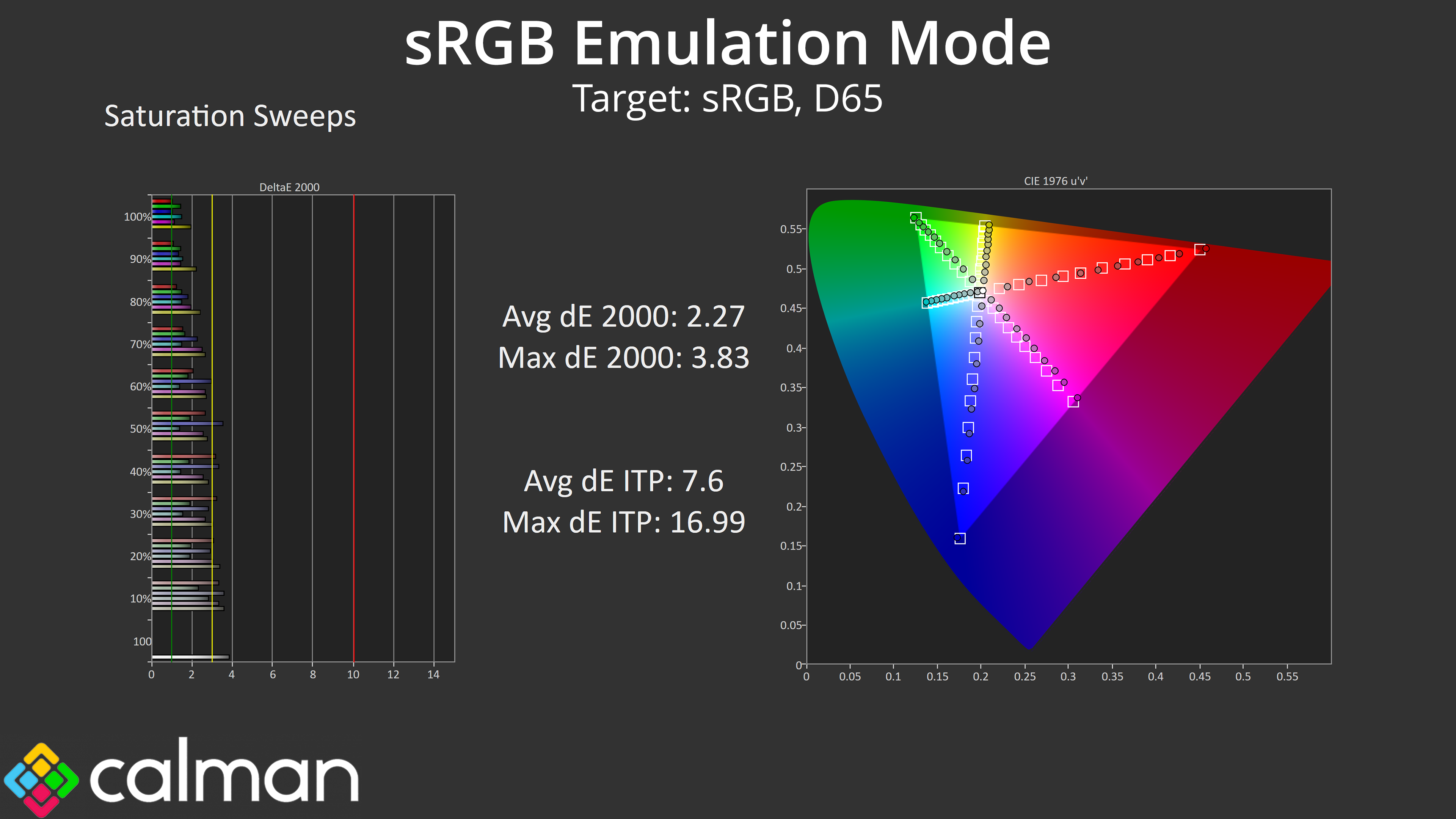
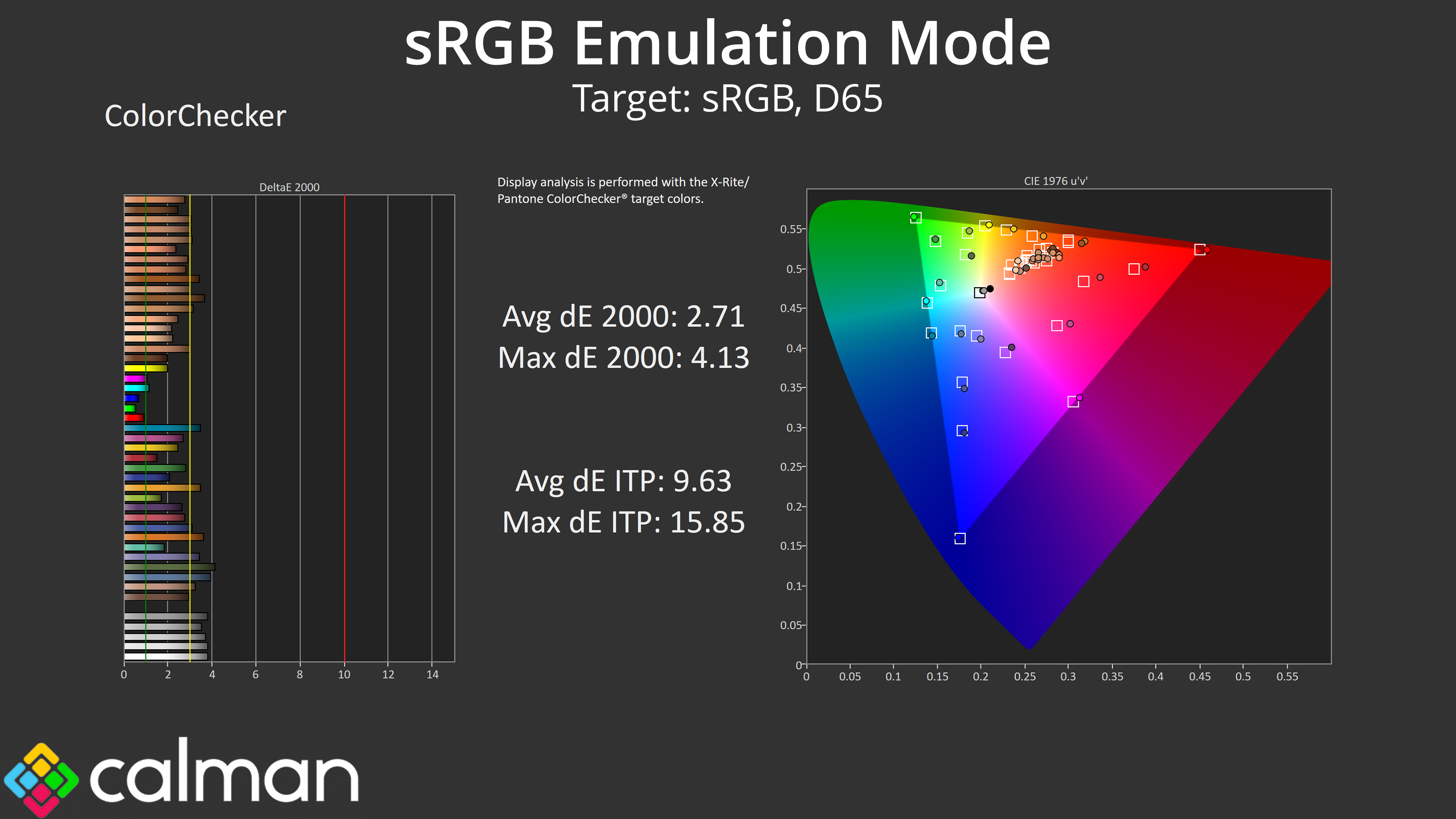
Now there is an sRGB emulation mode which does a good job at clamping the gamut to prevent over-saturation, the downside is gamma is still too high and now cannot be adjusted in this mode. We still see improvements to saturation and colour accuracy over stock, but they're not great results.
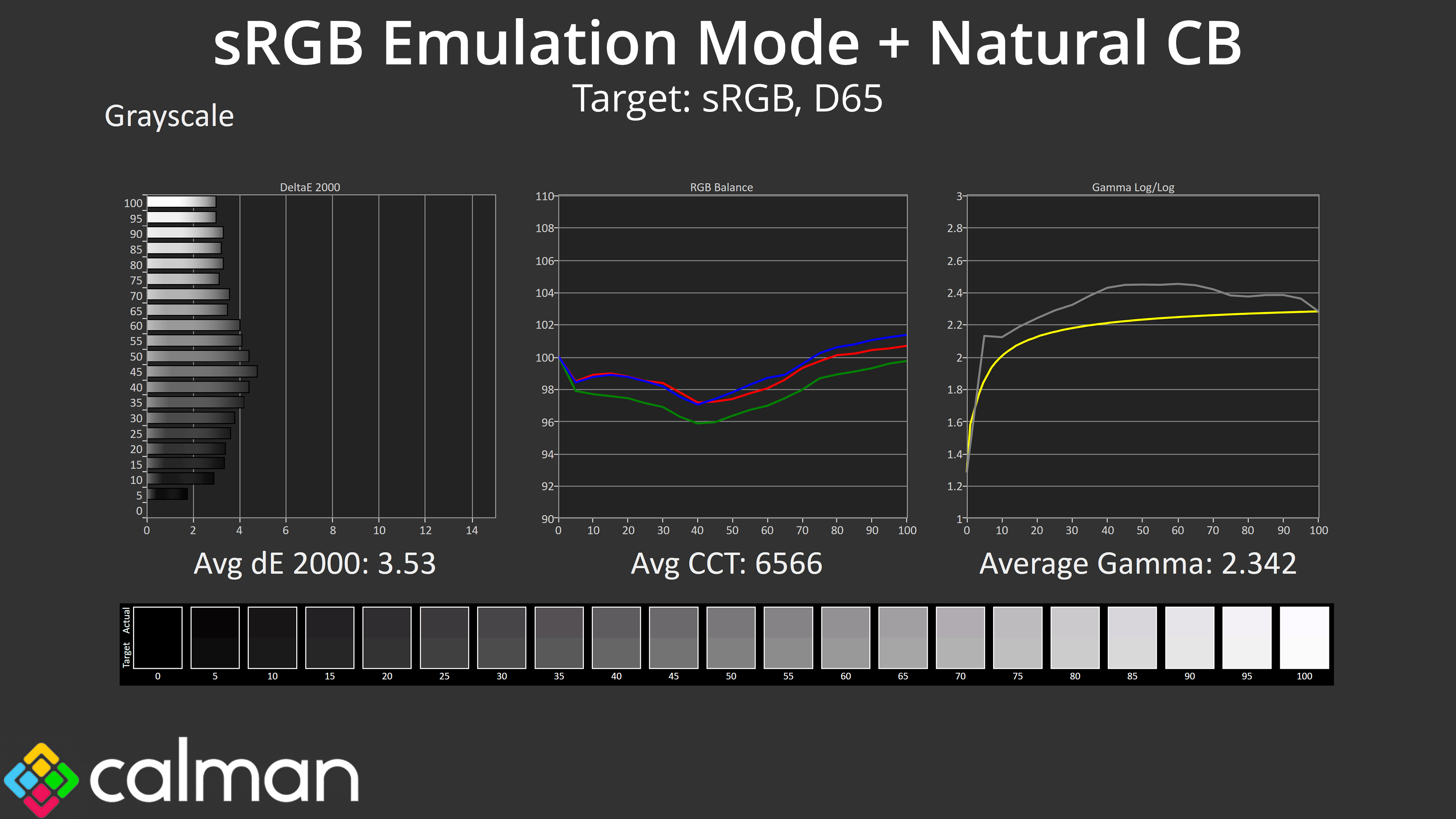
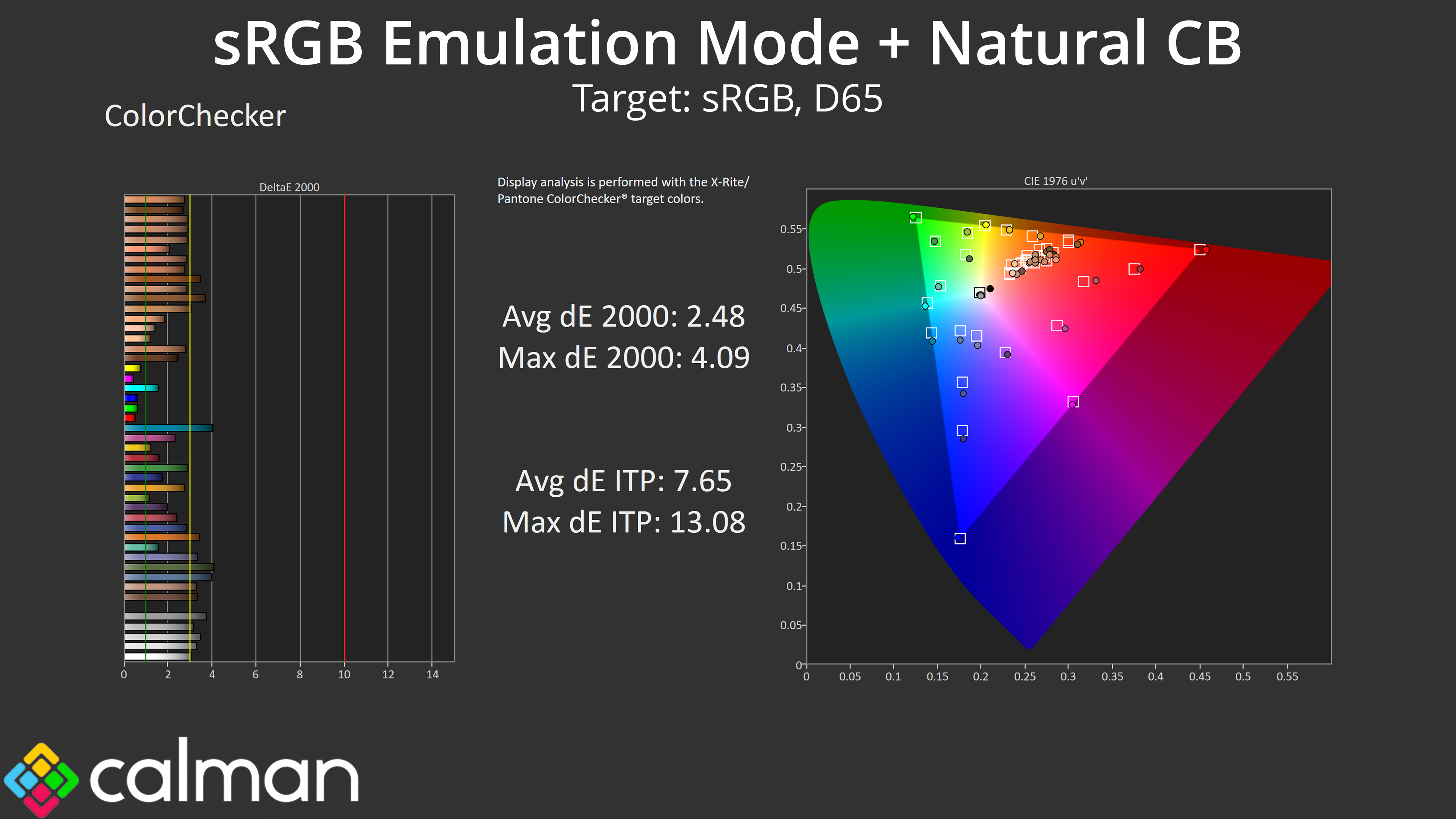
You can still switch to the Natural colour balance setting when using the sRGB mode which does help matters, but only slightly, as the gamma being too high is the main cause of inaccuracy here.
Calibrated Results
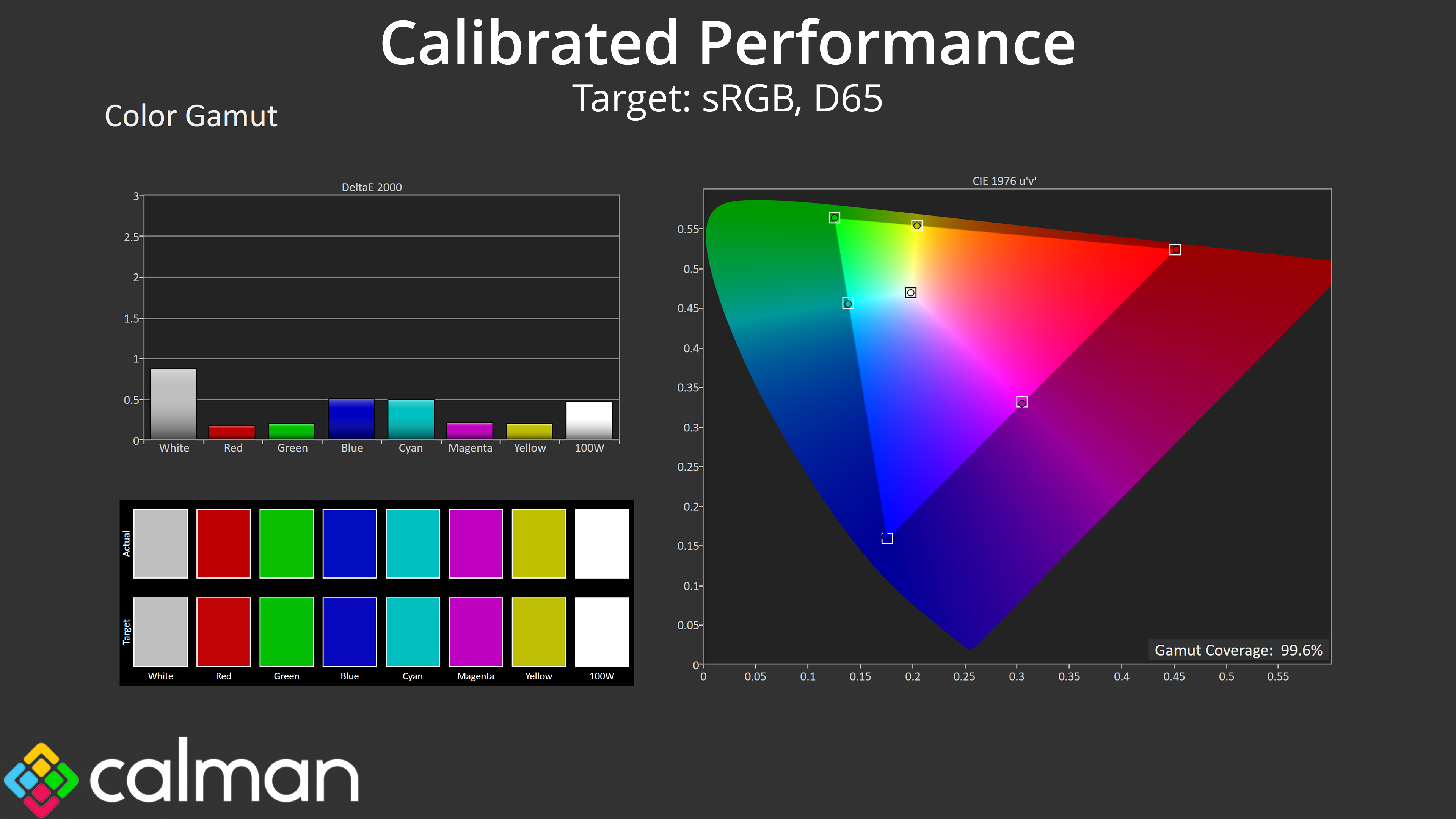
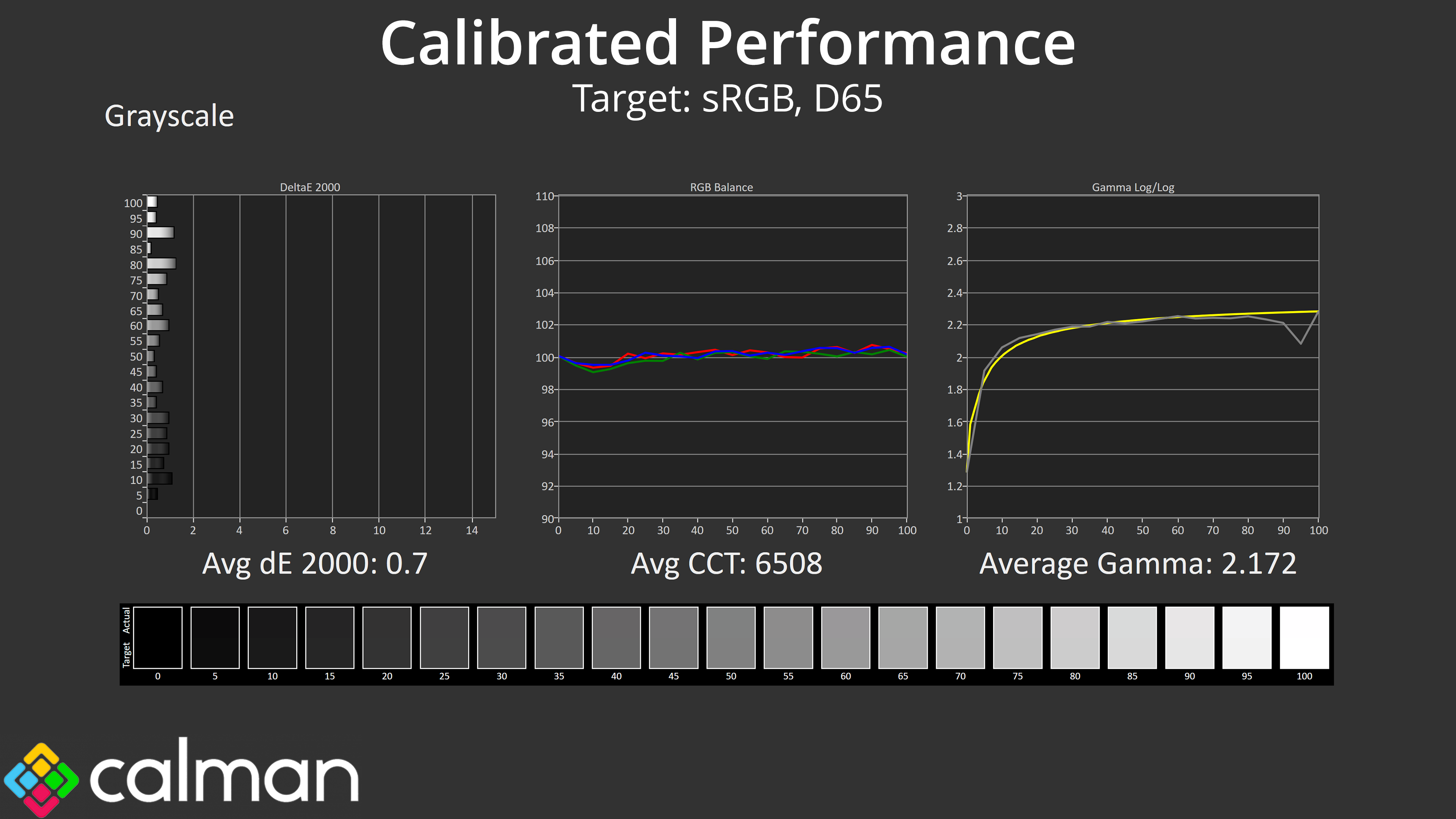
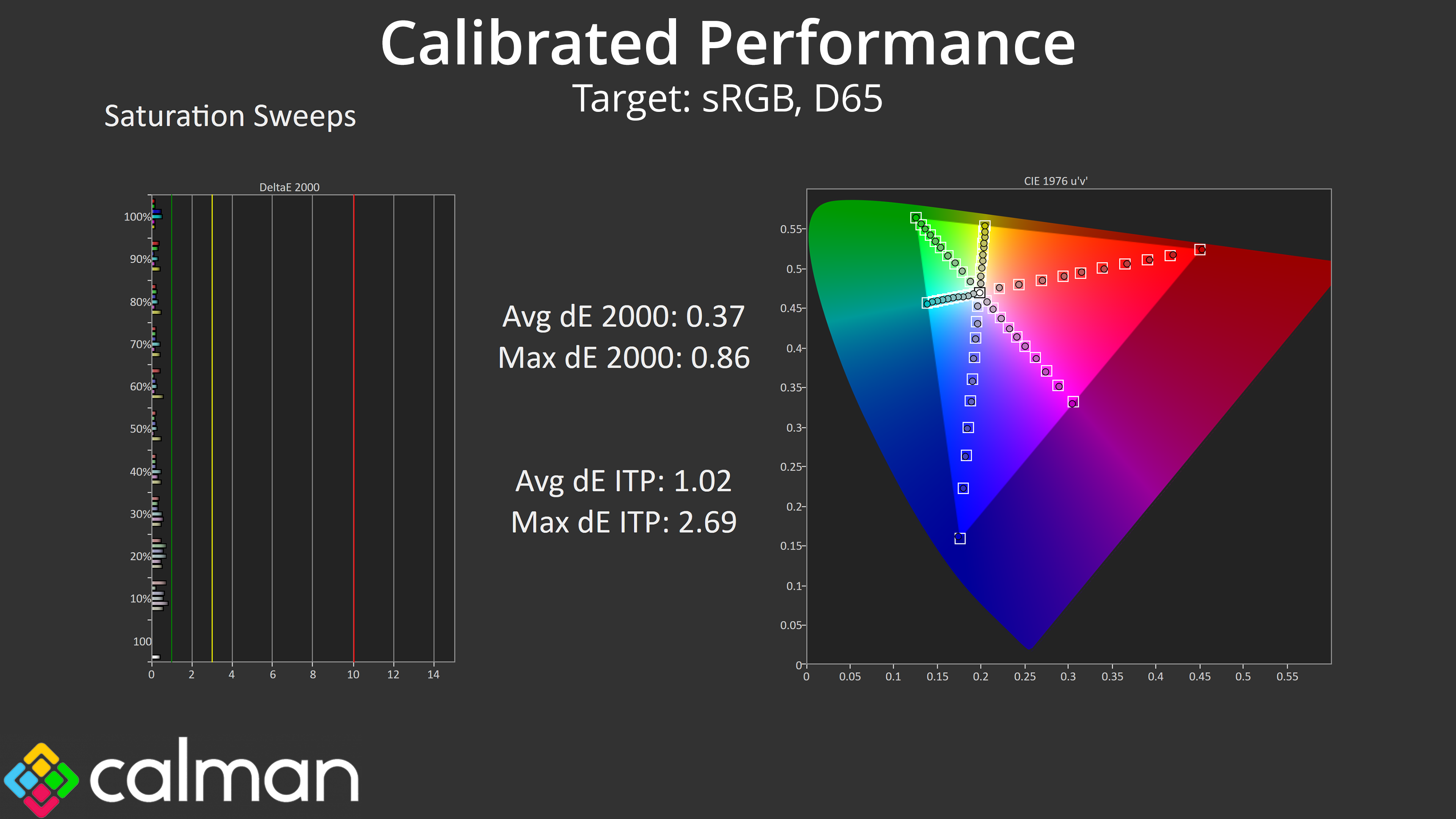
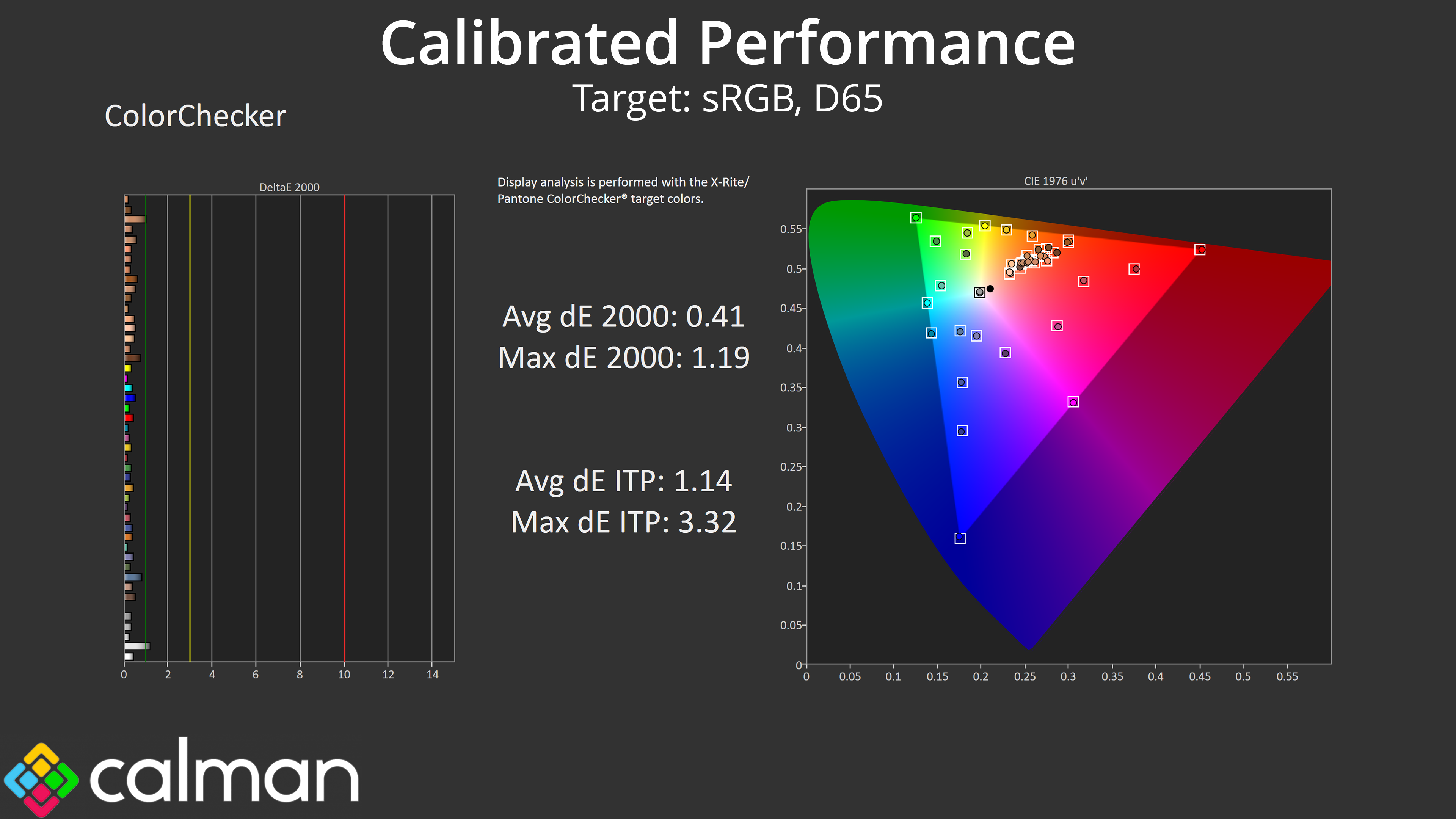
That means, for the best results, a full calibration is required. As expected, this produces stellar results with near-flawless performance across the board – you obviously just need the required hardware and software tools, which not everyone will have.